Archive for the ‘System Administration’ Category
September 15th, 2011
If you are a torrent lover like me then you need to read this.
Unfortunately, a day before yesterday (13th September, 2011) uTorrent’s (tiny and very stable torrent client) web servers were compromised by a hacker. This happened at 4:20am PST, and uTorrent’s web server team didn’t take the hacked server offline until 6am PST. The problem is, the hacker replaced the uTorrent Windows client with a fake antivirus executable. So anyone who downloaded the client during that 1 hour 40 minute period was actually downloading malware unknowingly.
The malware in question is called Security Shield, and is a well-known rogue anti-spyware program. It will pop-up a professional looking app screen on your desktop that lists fake infections after doing a fake scan. It then offers to remove them if you pay for the full-version of the “security suite.”
If you were unlucky enough to visit utorrent.com and download the Windows client during couple of days, then you’ve probably already seen the Security Shield software pop-up and run on your machine. You need to remove it asap check your PC with some good Antivirus other wise read this page [bleepingcomputers]
uTorrent has now apologized and managed to get their servers back online after removing the rogue files. If nothing else this should act as a reminder to everyone to ensure any files you download from the Internet are scanned with a reputable security scanner before being run, as clearly you can’t trust legitimate sites all of the time.
August 5th, 2011
Mounting Windows based shares on Linux is a relatively simple process.
If the share is on a Windows XP, Server 2000 or NT machine you can use the following command:
mount -t smbfs -o username=username //server/share /mountpoint
However for Server 2003 the above command will not work so you simply change smbfs for cifs as shown below.
mount -t cifs -o username=username //server/share /mountpoint
The username should be that of your Windows user and in both examples you will be prompted for your windows password.
The command above will work for all versions of Windows. If you are having difficulty mounting or receive an error with invalid file type ensure that the samba-client packages for your distribution are installed
August 4th, 2011
I spend most of my time working in front of a black and white terminal of remote SSH connections to various servers.
This means that I use bash (as my preferred shell) most of the day. And bash history is a very important feature of bash that saves me much time by recalling previous commands I have typed.
Here are some tricks on how you can optimize with some simple configurations settings the usage your bash history.
1. Append to History
history -a
Append the new history lines (history lines entered since the beginning of the current Bash session) to the history file.
2. Clear History
history -c
(clear the history)
3. Write History to file
history -w
(write to the file – overwrite!)
4. Dont save duplicate commands in the history
HISTCONTROL=ignoreboth
5. Size of the history:
HISTSIZE=500
HISTSIZE: The number of commands to remember in the command history. The default value is 500.
How do you set these 4-5 options? Either export them in your environment in your personal bash configuration file (~/.bashrc) or in the global bash configuration file (/etc/bash.bashrc).
export HISTCONTROL=ignoreboth
export HISTSIZE=500
May 4th, 2011
With Vista and Windows 7 "TCP Autotuning" is introduced. It will use up to a 16 MB maximum receive window and "Compound TCP (CTCP)".
To enable this enhance Network TCP through put launch a command prompt with administrator right:-
Read the rest of this entry »
April 4th, 2011
After a decade of abuse, Autorun is finally being retired in older versions of Windows.
Microsoft has finally removed Autorun function from earlier versions of its Windows operating system that has been widely abused by miscreants to surreptitiously install malware on users' computers.
Vista/Windows 7 introduces some new features like UAC and improved AutoPlay (aka Autorun) that disables certain functionality which has been abused by malware (like Conficker). These changes will be backported to down level platforms.
This functionality was made available for Windows XP, Windows Server 2003, Windows Vista and Windows Server 2008 .
Please visit the following KB article for more information and how to download the new updates http://support.microsoft.com/kb/971029 for disabling Autorun abuse.
Previous update http://support.microsoft.com/kb/967715
March 1st, 2011
Like most administrators, you’ve probably received a call from a user complaining that the network was “slow.” The good news is that with TPing you can monitor network latency, set maximum thresholds, and resolve problems before your users complain. Understanding your network, its performance, and its problems often requires a suite of tools that allows you to examine various aspects of your network. This tool provide solid data that let you baseline your network, troubleshoot problems, and measure anomalies and improvements.
TPing is a network monitoring tool written in Python. It uses its own low level socket programming to send ICMP ECHO_REQUEST to a host or device. With each collection, it sends 1 pings to get the latency. Results are then displayed in real-time so you can monitor network latency.
TPing can be used to continuously monitor a number of servers, routers, workstations, or other devices and continually show real-time response rates.

TPing is a simple console based utility that allows you to view ping results in a console window, TPing can even track the network latency high/low limit recorded during the sample period.

(Click on the image to view full scale)
The TPing network latency application has the ability to concurrently store network latency results in a log file for later review and analysis.
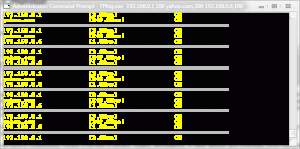
The different colors are a function of packet loss. Yellow means life is good; red means you’ve got troubles.
Please download the TPing Package from here TPing and extract in same folder
For executing TPing (with Administrative Rights), syntax is :-
TPing.exe IP,MaximumLatency IP,MaximumLatency and so on
e.g. TPing.exe 192.168.0.1,100 yahoo.com,300 google.com,200
Incase of VC2008 Dlls missing error you might need to download & Install VCRedist package from here vcredist_x86